PySpaceMouse
🎮 Multiplatform Python library for 3Dconnexion SpaceMouse devices using raw HID.
3Dconnexion Space Mouse in Python using raw HID.
Note: you don't need to install or use any of the drivers or 3Dconnexion software to use this package.
It interfaces with the controller directly with hidapi, via the hidapi Python bindings.



PySpaceMouse is forked from: johnhw/pyspacenavigator and modified to be multiplatform.

Supported 3Dconnexion devices
- SpaceNavigator
- SpaceMouse Pro / Pro Wireless
- SpaceMouse Wireless
- SpaceMouse Compact
- SpaceMouse Enterprise
- SpacePilot / SpacePilot Pro
- 3Dconnexion Universal Receiver
- ...
- Add more devices
Installation
pip install pyspacemouse
CLI
pyspacemouse --list-connected    # Show connected devices
pyspacemouse --list-supported    # Show all supported types
pyspacemouse --list-hid          # Show all HID devices
pyspacemouse --test              # Test connection
pyspacemouse --version           # Show version
Linux permissions
On linux, you may not have permission to read from the device.
To fix this, you can create a udev rule based on the device's Vendor ID (256f for 3Dconnexion's):
echo 'SUBSYSTEM=="hidraw", ATTRS{idVendor}=="256f", MODE="0660", TAG+="uaccess"' | sudo tee /etc/udev/rules.d/50-spacemouse.rules
echo 'SUBSYSTEM=="usb", ENV{DEVTYPE}=="usb_device", ATTRS{idVendor}=="256f", MODE="0660", TAG+="uaccess"' | sudo tee -a /etc/udev/rules.d/50-spacemouse.rules
sudo udevadm control --reload-rules && sudo udevadm trigger
Troubleshooting
See troubleshooting.md for help with common issues.
Quick Start
Here we use has_motion() to check if any of the spatial axes have non-zero values.
The optional argument is the threshold used, and is applied per-axis.
import pyspacemouse

# Context manager (recommended) - automatically closes device
with pyspacemouse.open() as device:
    while True:
        state = device.read()
        if state.has_motion(0.01):
            print(state.x, state.y, state.z, state.roll, state.pitch, state.yaw)
API Reference
From version 2.0.0 the API has been modularized and changed. Please look at the API Reference and Examples for more information.
Device Discovery
import pyspacemouse

# List connected SpaceMouse devices
pyspacemouse.get_connected_devices()
# Returns: ["SpaceNavigator", "SpaceMouse Pro", ...]

# List connected SpaceMouse devices with paths
pyspacemouse.get_connected_devices_by_path()
# Returns: {"/dev/hidraw0": "SpaceNavigator", ...}

# List all supported device types
pyspacemouse.get_supported_devices()
# Returns: [(name, vendor_id, product_id), ...]

# List ALL HID devices (for debugging)
pyspacemouse.get_all_hid_devices()
# Returns: [(product, manufacturer, vid, pid), ...]
Opening Devices
# Auto-detect and open first device
with pyspacemouse.open() as device:
    state = device.read()

# Open specific device by name
with pyspacemouse.open(device="SpaceNavigator") as device:
    state = device.read()

# Open second device when multiple identical devices are connected
with pyspacemouse.open(device_index=1) as device:
    state = device.read()

# Open by filesystem path (Linux: /dev/hidraw0)
with pyspacemouse.open_by_path("/dev/hidraw0") as device:
    state = device.read()
Reading State
with pyspacemouse.open() as device:
    state = device.read()

    # 6-DOF axes (range: -1.0 to 1.0)
    print(state.x, state.y, state.z)  # Translation
    print(state.roll, state.pitch, state.yaw)  # Rotation

    # Buttons (list of 0/1)
    print(state.buttons)

    # Timestamp
    print(state.t)
Axis Conventions
For new code, opt into an axis convention by passing an enum value on device open:
import pyspacemouse
from pyspacemouse import AxisConvention

with pyspacemouse.open(axis_convention=AxisConvention.HID_Z_UP) as device:
    state = device.read()
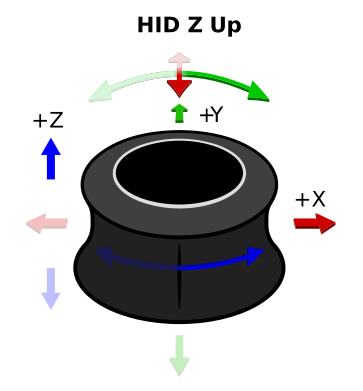
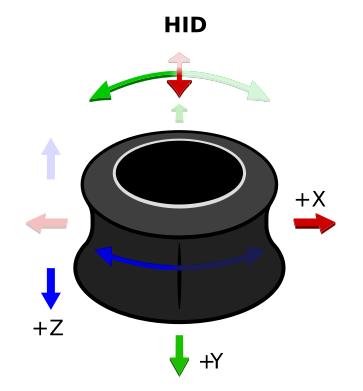
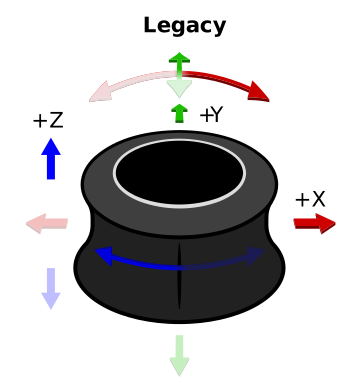
See Axis Conventions for the full
mapping table. Custom
device_spec mappings are used exactly as provided and cannot be combined with
axis_convention.
Callbacks
import pyspacemouse
import time


# Button callback
def on_button(state, buttons, pressed):
    print(f"Button {pressed} pressed!")


button_callbacks = [
    pyspacemouse.ButtonCallback(0, on_button),  # Button 0
    pyspacemouse.ButtonCallback([0, 1], on_button),  # Both 0 and 1
]

# DOF callback with filtering
dof_callbacks = [
    pyspacemouse.DofCallback(
        axis="x",
        callback=lambda s, v: print(f"X: {v}"),
        callback_minus=lambda s, v: print(f"X negative: {v}"),
        filter=0.1,  # Deadzone
        sleep=0.05,  # Rate limit
    ),
]

with pyspacemouse.open(
    button_callbacks=button_callbacks,
    dof_callbacks=dof_callbacks,
) as device:
    while True:
        device.read()  # Triggers callbacks
        time.sleep(0.001)  # NOTE: avoid larger sleeps, which can cause data to buffer
Custom Axis Mapping
Choose a built-in convention for common application frames:
import pyspacemouse
from pyspacemouse import AxisConvention

with pyspacemouse.open(axis_convention=AxisConvention.ROS) as device:
    state = device.read()
For custom coordinate frames, remap or invert axes explicitly:
import pyspacemouse

# Get existing device spec and modify axes
specs = pyspacemouse.get_device_specs()
base = specs["SpaceNavigator"]

custom = pyspacemouse.modify_device_info(
    base,
    remap_axes={"x": "y", "y": ("x", -1), "yaw": ("yaw", -1)},
)

with pyspacemouse.open(device_spec=custom) as device:
    state = device.read()
See Custom Device Configuration for full API.
Examples
See the examples/ directory:
| Example | Description |
|---|---|
01_basic.py |
Simple reading with context manager |
02_callbacks.py |
Button and DOF callbacks |
03_multi_device.py |
Using two devices simultaneously |
04_open_by_path.py |
Open specific device by path |
05_discovery.py |
List and inspect devices |
06_axis_callbacks.py |
Per-axis callbacks with filtering |
07_led.py |
LED control |
08_buttons.py |
Button names and handling |
09_invert_rotations.py |
Invert rotations |
10_custom_config_unity.py |
A totally custom device config using the Unity axis convention |
Dependencies
pip install pyspacemouse pulls in the hidapi package,
whose wheels bundle the hidapi C library. There is nothing else to install on Linux, macOS
or Windows.
Developing / Contributing
This project includes a Makefile with commands for creating a virtual environment (using hatch), and publishing to pypi.
You will need hatch and pre-commit for this.
You can get these by using
# Most recently tested with hatch 1.17.0
pipx install hatch pre-commit
If you're not familiar with pipx, it lets you install python tools into isolated environments in ~/.local.
For building the documentation locally, you will also need doxygen installed and on the path.
Used In
- TeleMoMa - A Modular and Versatile Teleoperation System for Mobile Manipulation
- SERL - SERL: A Software Suite for Sample-Efficient Robotic Reinforcement Learning
- Pancake Robot- An integration of the Ufactory Lite 6 robot arm with kitchenware to make pancakes.
- GELLO - GELLO: A General, Low-Cost, and Intuitive Teleoperation Framework for Robot Manipulators
- spacepad - A simple python script that turns a spacemouse device into a standard gamepad
- arm_xarm
